
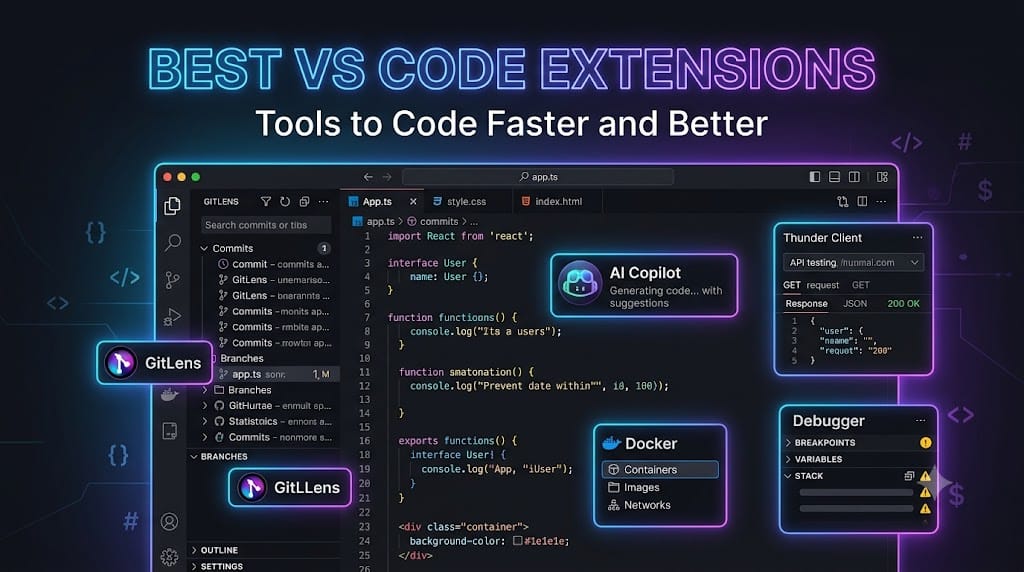
The right VS Code extensions can save developers hours every week by automating repetitive tasks and bringing essential development tools directly into the editor.
Instead of switching between VS Code, Git clients, API testing tools, documentation, and terminals, you can manage much of your workflow from one place.
I have added these extensions because they solve common problems developers face every day: messy code formatting, difficult debugging, slow Git workflows, repetitive coding, API testing, file navigation, and inconsistent team practices.
You do not need to install all extensions immediately. Start with the tools that match your development stack and add others as your projects require them.
GitHub Copilot
Best for: AI-assisted coding and productivity
GitHub Copilot provides AI-powered code suggestions directly inside VS Code. It can generate functions, complete repetitive code, explain snippets, suggest fixes, and help create tests or documentation.
Why it is one of the best choices
GitHub Copilot is useful when you understand what you want to build but need help writing the implementation faster. It is especially helpful for boilerplate code, API integrations, regular expressions, test cases, and unfamiliar libraries.
Why I added it
AI-assisted development has become an important part of modern software development. Copilot can significantly reduce repetitive work, but developers should still review its suggestions for security, correctness, and maintainability.
GitLens
Best for: Git history and code ownership
GitLens adds powerful Git features to VS Code. You can see who changed a line, inspect commit history, compare revisions, explore branches, and understand how a file evolved.
Why it is one of the best choices
GitLens makes Git history visible inside the code editor. This is useful when debugging a regression, reviewing a teammate’s changes, or understanding why a particular piece of code exists.
Why I added it
Git is essential for almost every software project, but the command line does not always provide enough context. GitLens makes repository history easier to explore and helps developers make better decisions before modifying existing code.
Prettier – Code Formatter
Best for: Automatic and consistent code formatting
Prettier automatically formats code according to defined style rules. It supports technologies such as JavaScript, TypeScript, JSX, JSON, CSS, HTML, Markdown, and more.
Why it is one of the best choices
Prettier removes arguments about indentation, quotes, semicolons, line breaks, and formatting styles. You can also configure it to format files automatically whenever you save them.
Why I added it
Consistent formatting makes code easier to read and reduces unnecessary formatting changes in Git commits. It is especially valuable for teams working on the same codebase.
ESLint
Best for: JavaScript and TypeScript code quality
ESLint analyzes JavaScript and TypeScript code to identify syntax issues, suspicious patterns, bugs, and violations of project coding rules.
Why it is one of the best choices
ESLint provides immediate feedback while you write code. It can catch unused variables, incorrect imports, unsafe practices, and other problems before they reach production.
Why I added it
ESLint works especially well with Prettier. Prettier handles code formatting, while ESLint focuses more on code quality and potential problems. Using both creates a stronger development workflow.
Error Lens
Best for: Displaying errors directly in the editor
Error Lens shows errors, warnings, and diagnostic messages directly beside the line of code that caused them. Developers do not need to constantly open the Problems panel to understand what went wrong.
Why it is one of the best choices
The extension makes problems more visible and reduces the time required to locate errors. It can highlight type errors, linting issues, missing imports, and other diagnostic messages from supported language tools.
Why I added it
Error messages hidden in a separate panel are easy to overlook. Error Lens makes feedback immediate and helps developers fix problems while they are still working on the relevant code.
Thunder Client
Best for: Testing APIs inside VS Code
Thunder Client is a lightweight API client that allows you to send HTTP requests, inspect responses, manage environments, and test endpoints without leaving VS Code.
Why it is one of the best choices
It provides a simpler alternative to switching between the code editor and a separate API testing application. It is useful for testing REST APIs, authentication, request headers, query parameters, and JSON responses.
Why I added it
API testing is a regular part of frontend and backend development. Thunder Client keeps this workflow close to the source code and is convenient for developers working on small or medium-sized projects.
Live Server
Best for: Previewing frontend projects
Live Server launches a local development server and automatically refreshes the browser when you make changes to HTML, CSS, or JavaScript files.
Why it is one of the best choices
It provides a fast way to preview static websites and frontend prototypes. You can see changes almost immediately without manually refreshing the browser.
Why I added it
Live Server is simple, beginner-friendly, and useful for quickly testing landing pages, website layouts, HTML experiments, and small frontend projects.
Tailwind CSS IntelliSense
Best for: Tailwind CSS development
Tailwind CSS IntelliSense provides autocomplete, syntax highlighting, class suggestions, and linting for Tailwind CSS utility classes.
Why it is one of the best choices
Tailwind projects often contain long utility class names that are difficult to remember. IntelliSense makes it easier to discover classes and reduces typing mistakes.
Why I added it
Tailwind CSS is widely used in modern frontend and SaaS development. This extension improves the developer experience and makes working with utility classes considerably faster.
Prettify JSON
Best for: Reading and formatting JSON files
Prettify JSON helps format, minify, and organize JSON files so they are easier to read and edit.
Why it is one of the best choices
JSON is used extensively in APIs, configuration files, package files, environment settings, and data exchange. Proper formatting makes nested objects and large responses easier to understand.
Why I added it
Developers frequently work with poorly formatted JSON copied from APIs, logs, or external tools. A dedicated formatter saves time and improves readability.
Path Intellisense
Best for: Autocomplete for file paths
Path Intellisense provides autocomplete suggestions when importing files or referencing images, stylesheets, scripts, and other project assets.
Why it is one of the best choices
It reduces errors caused by incorrect filenames, folder paths, or file extensions. This is particularly useful in frontend projects with many components and assets.
Why I added it
Manually typing long relative paths is slow and error-prone. Path Intellisense improves navigation and makes imports more efficient.
Auto Rename Tag
Best for: Editing HTML and JSX tags
Auto Rename Tag automatically renames the opening or closing tag when you change the matching tag.
Why it is one of the best choices
If you change a <div> to a <section>, the extension updates the corresponding closing tag automatically. This helps prevent broken markup.
Why I added it
Frontend developers constantly work with HTML, JSX, XML, and similar markup. Auto Rename Tag is a small extension, but it removes a frequent source of simple errors.
Docker
Best for: Working with containers
The official Docker extension helps developers manage Dockerfiles, images, containers, registries, and Docker Compose configurations directly from VS Code.
Why it is one of the best choices
You can build, run, inspect, and manage containers without relying entirely on terminal commands. The extension also provides syntax support and useful project navigation.
Why I added it
Docker is important for SaaS development, local environments, deployment, and self-hosting. This extension is especially useful when building applications that depend on databases, queues, or multiple services.
Dev Containers
Best for: Reproducible development environments
Dev Containers allows you to open a project inside a Docker-based development container. The container can include the required runtime, libraries, tools, and dependencies.
Why it is one of the best choices
It helps ensure that every developer uses a consistent environment. This reduces the “works on my machine” problem and makes onboarding easier.
Why I added it
Dev Containers are valuable for teams, open-source projects, and complex applications with multiple dependencies. They are also useful when you want to keep your local system clean.
Better Comments
Best for: Organizing important comments
Better Comments highlights comments using different colors and categories, such as alerts, questions, TODOs, important notes, and warnings.
Why it is one of the best choices
It makes important context easier to spot when scanning through a file. Developers can quickly identify pending tasks, warnings, and areas that need attention.
Why I added it
Comments are often ignored when every comment looks the same. Better Comments adds visual structure without changing the application code.
Project Manager
Best for: Managing multiple projects
Project Manager allows you to save, organize, and quickly switch between different VS Code projects and workspaces.
Why it is one of the best choices
It is useful when you work on multiple client projects, side projects, repositories, or experiments. You can open a project directly without repeatedly searching through folders.
Why I added it
Developers who manage professional work and personal projects often lose time switching between directories. Project Manager makes that process faster and more organized.
Recommended Starter Setup
If you do not want to install all 15 extensions, start with this core group:
- GitHub Copilot for AI-assisted coding.
- GitLens for Git history and collaboration.
- Prettier for consistent formatting.
- ESLint for JavaScript and TypeScript code quality.
- Error Lens for visible development feedback.
- Thunder Client for API testing.
- Docker for container-based development.
Spotted something outdated or wrong?
Report an issue
We hate ads too. Sign up free to remove them









Comments